Introduction
You know that drawer (or box) full of tech “upgrades” you bought with good intentions… and then never touched again? Most home tech fails for one simple reason: it adds friction. Extra steps, extra apps, extra cables—until it’s easier to ignore it.
The accessories in this guide are different. They’re the kind of upgrades you feel every single day: fewer dead batteries, fewer Wi-Fi dropouts, fewer “where are my keys?” moments, and fewer cable mess disasters on your desk or nightstand. The goal here is simple: help you buy the right home tech accessories the first time—without hype, and without wasting money.
Category overview: What are “home tech accessories”?
Home tech accessories are the “support players” that make your devices (phones, laptops, smart home gear) easier to live with: charging, connectivity, power protection, automation, and organization.
Who this category is ideal for
- People who charge multiple devices daily (phone + earbuds + watch + laptop)
- Remote workers / students with USB-C laptops and external monitors
- Families who want easy automation (lights, fans, holiday décor, routines)
- Anyone tired of weak Wi-Fi in bedrooms, back offices, or garages
Who should not buy right now
- If you’re about to replace your phone/laptop/router in the next 30–60 days (your new device may change what you need)
- If you hate apps and won’t set up even basic configuration (some smart accessories require initial setup)
- If your biggest issue is home security (that’s a different category: cameras/doorbells/alarms)
Practical daily benefits (the “why it matters” list)
- Faster charging with fewer bricks and fewer cables
- Cleaner setups (desk/nightstand) that feel less chaotic
- More reliable connections (Wi-Fi that doesn’t drop in the one room you use most)
- Less mental load (automation schedules, trackers for essentials)
- Device protection (surge protection is boring—until it saves you)
Top Picks: Best Home Tech Accessories on Amazon
1) Multi-port GaN Wall Charger (65W class) — for faster, cleaner charging
A good GaN wall charger replaces the “brick pile” with one compact charger that can power a laptop and phone (or multiple phones) from a single outlet.
What it does (technical, manufacturer-based)
Many 65W-class multi-port chargers are designed to deliver high power through USB-C Power Delivery, often splitting power across ports depending on what you plug in. Anker’s GaNPrime 65W-class charger documentation and support materials are a good example of this category’s intent: compact size + multi-device charging + higher efficiency.
How to use it (step-by-step)
- Plug the charger into a wall outlet.
- Use a USB-C cable for devices that support USB-C PD (laptops/modern phones).
- If using multiple ports, expect power to distribute across connected devices (normal behavior for multi-port chargers).
Daily-life wins
- One charger for work bag + nightstand
- Less cable swapping (especially if you keep one USB-C cable per device)
Pros (based on common user feedback)
- Replaces multiple chargers; cleaner travel + home setup
- Good for USB-C laptop users
Cons (what people complain about most)
- Multi-port power sharing can confuse buyers (“why is my laptop charging slower?”)
- Some chargers get warm under load (normal, but should not be excessively hot)
Ideal for
- Remote workers, students, travelers, anyone with USB-C devices
Kid/teen safety note
- Keep chargers/cables away from toddlers (cord + outlet hazards).
CTA: Check price on Amazon

- The Only Charger You Need: Say goodbye to your old chargers. Anker 735 Charger (Nano II 65W) has the power you need to f…
- High-Speed Charging: Connect a single device to get a 65W max charge—that’s enough to power up a 2020 MacBook Pro 13″ at…
- Compact Design: Power up to 3 devices with a charger that’s roughly the size of an AirPods Pro case.
2) 3-in-1 Wireless Charging Stand (MagSafe-style) — the nightstand upgrade
If you’re constantly juggling a phone + earbuds + smartwatch, a 3-in-1 stand can make charging feel effortless: drop devices in place and wake up fully powered.
What it does (technical, manufacturer-based)
Belkin’s 3-in-1 MagSafe models are designed to charge multiple Apple devices at once, with fast wireless charging “up to 15W” for compatible iPhone models and alignment via MagSafe.
How to use it (step-by-step, per setup guidance)
- Place the stand on a stable surface.
- Connect the power adapter to the stand and plug into an outlet.
- Attach iPhone to the MagSafe mount; place AirPods on the base; place Apple Watch on the watch charger.
Daily-life wins
- No more “which cable is mine?” mess
- Great for couples/nightstands and shared home office desks
Pros
- One outlet powers multiple devices
- Reduces cable clutter dramatically
Cons
- Wireless charging is convenient, but not always the fastest vs. wired
- Only a slam dunk if your devices match the ecosystem (especially Apple-focused)
Ideal for
- iPhone + Apple Watch + AirPods households
- Anyone trying to clean up a nightstand setup
Kid/teen safety note
- Watch small accessories and removable parts; keep cords tidy to avoid pulling.
Quick safety tip (important)
Before buying any power bank/charging accessory, it’s smart to do a quick recall check—some charging products have been recalled for overheating risks.
CTA: Check price on Amazon
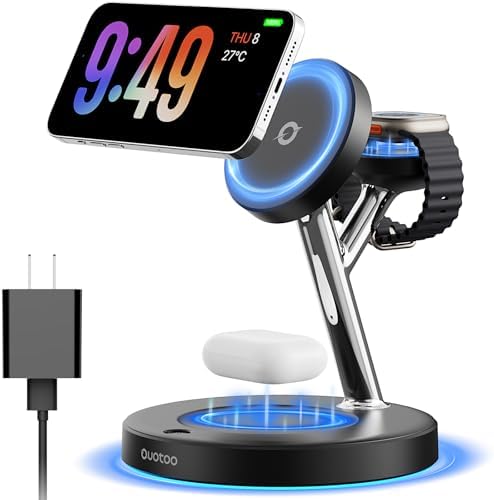
- 【Excellent design concept】: OUOTOO solves user pain points. When you are still struggling with a pile of charging cables…
- 【Addressing overheating issues】:The product is made by combining electroplating technology and ABS environmentally frien…
- 【Upgrade Powerful Mag-Safe Charger Stand】3 in 1 Mag-Safe charger makes fast charging safe and easy. The built-in super s…
3) Smart Plug Mini (Wi-Fi) — the easiest smart home “starter piece”
A smart plug turns “dumb” devices into scheduled/voice-controlled devices—lamps, fans, coffee makers (simple ones), holiday lights, etc.
What it does (technical, manufacturer-based)
TP-Link’s Kasa smart plug mini category is designed for controlling light-duty electronics through the Kasa app, including features like schedules and integration options depending on model/app configuration.
How to use it (step-by-step, per guide resources)
- Plug the smart plug into a wall outlet.
- Plug your device (lamp/fan) into the smart plug.
- Open the Kasa app and follow setup to connect the plug to your Wi-Fi.
Daily-life wins
- “Lamp turns on at sunset” without thinking
- Helps routines: wake-up light, bedtime fan timer, holiday lights schedule
Pros
- Big convenience for small cost
- Great first step into smart home automation
Cons
- Setup depends on stable Wi-Fi and correct app permissions
- Not for high-power appliances (space heaters are a common “don’t do it”)
Ideal for
- Families, renters, anyone who wants automation without rewiring
Kid/teen safety note
- Teach kids not to plug/unplug repeatedly or overload outlets.
Check price on Amazon

- Easy Setup & Certification: Plug-and-play installation with no hub required. 2.4GHz Wi-Fi only (5G is not supported). Ce…
- Voice Control: Works with Alexa and Google Home. For setup, please first connect the smart plug to the GHome app, then y…
- Scheduling & Timing: Automate your home by setting custom schedules to turn connected devices on and off automatically.
4) USB-C Hub (8-in-1 class) — for laptop users who need real ports
Modern laptops are thin… and often missing the ports people actually use. A USB-C hub gives you HDMI, USB-A, SD/microSD, and sometimes pass-through charging.
What it does (technical, manufacturer-based)
Anker’s 8-in-1 hub guidance highlights key compatibility requirements: your laptop’s USB-C port should support Power Delivery for charging and DisplayPort Alt Mode for HDMI display output.
How to use it (step-by-step)
- Plug the hub into your laptop’s USB-C port.
- Connect HDMI to a monitor/TV (if your USB-C supports DP Alt Mode).
- Connect USB devices (mouse/keyboard/external drive).
- If the hub supports pass-through charging, connect a USB-C charger to the hub’s PD port.
Daily-life wins
- One plug turns your laptop into a workstation
- Easy “dock-like” setup for home office
Pros
- More ports without buying a full dock
- Great for travel + presentations
Cons
- Compatibility can be confusing (not all USB-C ports are equal)
- Some hubs get warm when driving HDMI + charging + multiple devices
Ideal for
- Students, remote workers, creators, anyone using external monitors
Kid/teen safety note
- Not dangerous, but teach careful cable handling to avoid yanking laptops.
Check price on Amazon

- 【60Hz USB C Adapter】Hdmi splitter for extra monitor support mirror or extend mode with crystal clear 3D visual and high …
- 【Stable 1000Mbps Ethernet】USB to ethernet adapter provides faster data transfers and better security than most Wi-Fi con…
- 【Effortless Data Transfer】Built in 3*USB3.0 which fulfill high speed rates data transfer and wide range of applications …
5) Bluetooth Item Tracker (AirTag-style) — for keys, bags, and luggage
If you lose keys even twice a year, a tracker can pay for itself in saved time and stress.
What it does (technical, manufacturer-based)
Apple’s setup instructions describe adding an AirTag by holding it near an iPhone/iPad and connecting it to Find My; the process requires compatible iOS/iPadOS versions depending on the AirTag generation.
How to use it (step-by-step, per Apple support)
- Hold the tracker near your iPhone or iPad.
- Tap Connect when it appears.
- Name it (Keys, Backpack, etc.) and link it to your account.
Daily-life wins
- “Play sound” when keys vanish inside the house
- Peace of mind in travel bags/luggage
Pros
- Reduces wasted time searching
- Great for travel organization
Cons
- Most useful if you’re in the right device ecosystem
- You’ll still need a keychain/holder (often sold separately)
Kid/teen safety note (important)
- Trackers use small batteries and are a choking hazard. Keep away from young children.
Check price on Amazon

- Keep track of and find your items alongside friends and devices in the Find My app
- Key finder and locator for your wallet, luggage, backpack, and more. Share an AirTag with up to 5 people, so items that …
- Simple one-tap setup instantly connects AirTag with your iPhone or iPad. System require: iPhone SE, iPhone 6s, or iPod t…
6) Surge Protector Power Strip with USB — boring, essential protection
This is the unsexy purchase that protects the fun purchases.
What it does (technical, manufacturer-based)
APC’s SurgeArrest documentation describes multi-stage surge suppression, plus features like EMI/RFI noise filtering (useful for sensitive electronics) and USB charging ports depending on model.
APC product listings also describe USB charging behavior (“smart charging” style) on certain models.
How to use it (step-by-step)
- Plug the surge protector directly into a wall outlet (avoid daisy-chaining power strips).
- Connect your electronics (TV, router, consoles, chargers).
- Use the USB ports for phones/tablets if included.
Daily-life wins
- Protects your router/modem/TV from surges
- Consolidates charging in one place (living room / office)
Pros
- Protection + convenience
- Great for home office and entertainment centers
Cons
- Cheap strips can be misleading (not all are true surge protectors)
- Takes up space—measure your outlet area
Ideal for
- Everyone, especially if you have expensive electronics
Kid/teen safety note
- Keep cords managed; don’t overload; avoid running under rugs.
Check price on Amazon

- ★Multi Function Power Strip: Power strip surge protector with 12AC outlets & 4 USB charging ports (5V/3.4A,17W), 6-foot …
- ★Surge Protector Power Strip with usb: 2 Special design widely spacing AC outlets (2 inches) for large adapters with 10 …
- ★12 AC Surge Protector Outlets: The 3 level complementary Surge Protector Circuit which composed of TVS (transient volta…
7) Mesh Wi-Fi System (eero-style) — when your Wi-Fi “works”… except where you live
If your video calls freeze in the back room or your streaming buffers in bed, you don’t need “faster internet.” You need better coverage.
What it does (technical, manufacturer-based)
eero’s setup guide explains the basic mesh flow: connect the main unit to your modem via Ethernet, power it on, and complete setup in the app.
How to use it (step-by-step, per setup guidance)
- Unplug your modem/router (if separate).
- Connect the eero unit to your modem with Ethernet.
- Power on modem and eero; follow the in-app setup flow.
Daily-life wins
- Fewer dead zones
- More stable streaming and video calls
Pros
- Big improvement in real-world coverage
- Great for multi-room homes and busy households
Cons
- Costs more than a basic router upgrade
- Placement matters (you may need to experiment)
Ideal for
- Families, work-from-home setups, larger homes or thick walls
Check price on Amazon

- Like-New Amazon eero 6 dual-band mesh WiFi 6 extender is refurbished, tested, and certified to look and work like new an…
- Extend your eero wifi coverage – An eero 6 extender adds up to 1,500 sq. ft. of Wi-Fi 6 coverage to your existing eero m…
- Set up in minutes – The eero app walks you through adding an eero 6 extender and is backwards compatible with previous W…
8) Smart LED Bulbs (Hue-style) — convenience + vibe, without rewiring
Smart bulbs are for anyone who wants lighting to be practical (timers) and pleasant (scenes).
What it does (technical, manufacturer-based)
Philips Hue provides official setup instructions through the Hue app for adding bulbs and lamps to your system.
How to use it (step-by-step, per Hue setup instructions)
- Install the bulb in a lamp/light fixture and turn it on.
- Open the Hue app.
- Add the light in the app (choose room/area, then pair).
Daily-life wins
- Wake-up lighting, bedtime dimming, “movie mode”
- Great for kids’ routines (gentle dim at night)
Pros
- Schedules and scenes add real daily comfort
- Easy upgrade with huge impact
Cons
- Some systems require a hub/bridge for full features
- Not worth it if you rarely use the light
Kid/teen safety note
- Not dangerous, but teach “don’t flip the switch off” if it interrupts smart control (depends on setup).
Check price on Amazon
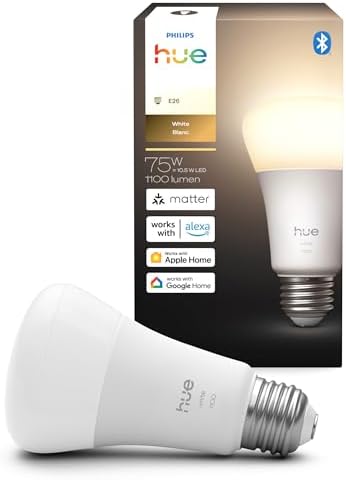
- WARM WHITE LIGHT – Light up your home and create a warm, welcoming feel with soft white light (2700K) ideal for bedrooms…
- LOW DIMMING – Dim your bulb smoothly from full brightness down to 5% to achieve the right lighting for whatever you’re d…
- SMART CONTROLS – Control your light remotely using the award-winning Hue app or add a Hue Bridge to control using your p…
Buying Guide: How to choose the right home tech accessories
What to look for before buying
- Ecosystem fit: Apple-heavy home vs Android-heavy home matters most for trackers and some chargers.
- USB-C reality check: For hubs, confirm your laptop supports Power Delivery and DP Alt Mode if you need HDMI.
- Power needs: A 65W charger is great for many laptops, but some need more (check your laptop’s charger wattage).
- Wi-Fi needs: If the issue is coverage, mesh helps. If it’s speed, you might need a plan/router upgrade.
- Safety + compliance: Avoid no-name chargers/power banks. Do a quick recall check on charging accessories.
Common beginner mistakes (and how to avoid them)
- Buying a USB-C hub for HDMI without DP Alt Mode support → check laptop specs first.
- Using smart plugs on high-wattage heaters → stick to light-duty electronics.
- Assuming wireless charging = fastest charging → wireless = convenience; wired often wins for speed.
- Placing mesh nodes randomly → put them where they can “talk” to each other reliably (not hidden in cabinets).
Budget vs premium (where it matters)
- Pay premium for: chargers (safety), surge protectors (real protection), mesh Wi-Fi (stability)
- Budget is fine for: basic smart plugs, simple cable management, entry-level USB-C hubs (if your needs are modest)
Quick comparison table (simple, decision-focused)
| Accessory Type | Best For | Complexity | Price Tier |
|---|---|---|---|
| GaN multi-port charger | Charging phones + laptops cleanly | Low | $$ |
| 3-in-1 wireless stand | Nightstand convenience | Low | $$–$$$ |
| Smart plug | Easy automation | Medium | $ |
| USB-C hub | Laptops + monitors + peripherals | Medium | $–$$ |
| Bluetooth tracker | Keys, bags, luggage | Low | $$ |
| Surge protector w/ USB | Protection + convenience | Low | $–$$ |
| Mesh Wi-Fi | Whole-home stability | Medium | $$–$$$ |
| Smart bulbs | Schedules + scenes | Medium | $–$$$ |
FAQ
1) Are GaN chargers safe?
From reputable brands and proper certifications, GaN chargers are designed to be safe and efficient. Stick to known brands and avoid ultra-cheap no-name listings.
2) Why is my laptop charging slower on a multi-port charger?
Many multi-port chargers distribute power between devices. If you plug in multiple devices, your laptop may not get the full wattage.
3) Will any USB-C hub work with HDMI?
No. Your laptop’s USB-C port typically needs DisplayPort Alt Mode for HDMI output.
4) Do smart plugs work without Wi-Fi?
Usually they need Wi-Fi for setup and remote control. Some features may work locally depending on model/app, but assume Wi-Fi is required for the full experience.
5) Is mesh Wi-Fi worth it in a small apartment?
Sometimes. If walls are thick or the router is placed poorly, mesh can still help. But if your coverage is already strong, spend money elsewhere first.
6) Do I need a surge protector if I already have a power strip?
A basic power strip is not the same as surge protection. Surge protectors are designed to suppress spikes and protect equipment.
Conclusion
If you want the biggest “feel it every day” upgrades, start here:
- For charging sanity: a 65W GaN multi-port charger + (if you’re Apple-heavy) a 3-in-1 wireless stand
- For instant smart home convenience: a smart plug mini
- For work/school setups: a USB-C hub (check compatibility first)
- For protection and stability: a surge protector + (if needed) mesh Wi-Fi
- For peace of mind: an AirTag-style tracker for keys and bags
And if you’re choosing between products with the same purpose (example: two different chargers), default to the one with clearer safety documentation, stronger brand support, and fewer “overheating” complaints in recurring feedback. Also—do a quick recall check on charging gear before you commit.
Check price on Amazon
| Accessory Type | Best For | Complexity | Price Tier |
|---|---|---|---|
| GaN multi-port charger | Charging phones + laptops cleanly | Low | $$ |
| 3-in-1 wireless stand | Nightstand convenience | Low | $$–$$$ |
| Smart plug | Easy automation | Medium | $ |
| USB-C hub | Laptops + monitors + peripherals | Medium | $–$$ |
| Bluetooth tracker | Keys, bags, luggage | Low | $$ |
| Surge protector w/ USB | Protection + convenience | Low | $–$$ |
| Mesh Wi-Fi | Whole-home stability | Medium | $$–$$$ |
| Smart bulbs | Schedules + scenes | Medium | $–$$$ |