Introduction
If your “home office” is really just a desk squeezed into a corner, you already know the pain: cables everywhere, nowhere to stash the little stuff, a monitor that’s too low, and lighting that makes your eyes feel cooked by 3 p.m.
The good news is you don’t need a full renovation (or a $1,000 desk) to make your setup feel calmer and more professional. A few smart desk accessories can improve comfort, cut visual clutter, and make it easier to stay focused—without turning your space into a gadget museum.
This guide walks you through the desk accessories that make the biggest real-life difference, how they’re used day to day, and what to watch out for before you buy.
Category overview: what “desk accessories” really means
Desk accessories for a home office are the practical add-ons that improve comfort, organization, lighting, and workflow—without replacing your main furniture.
Who these are ideal for
- People who work from home (full-time or hybrid) and feel “sloppy desk stress”
- Students or teens doing homework at a shared desk
- Anyone who wants a cleaner setup for video calls and deep-focus work
Who should not buy right now
- If your chair/desk height is wildly off, fix that first (even with basic adjustments) before stacking accessories.
- If you’re moving soon or changing rooms, wait—buying “perfect-fit” storage pieces too early is how clutter gets rebranded as “products.”
Practical daily benefits
- Better posture (monitor height + foot support) can reduce neck/shoulder strain over long sessions
- Less cable mess = faster cleanup and fewer accidental unplug moments
- Better task lighting reduces eye fatigue and makes late work feel less exhausting
Top Picks: the best desk accessories (different categories)
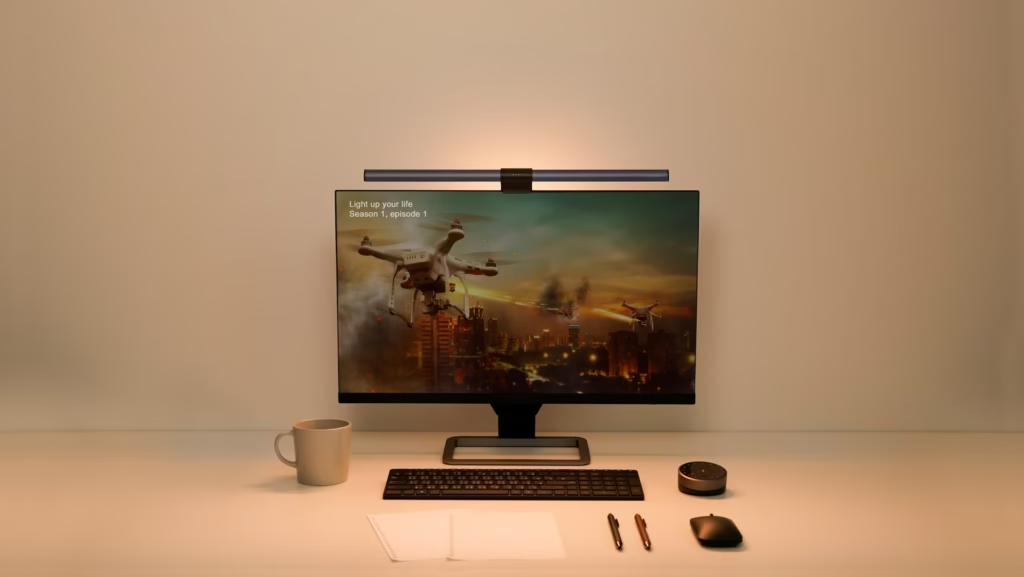
1) BenQ ScreenBar Halo (Monitor Light Bar)
What it does (technical, from the user guide):
A monitor-mounted light bar designed to illuminate your desk while avoiding screen glare. The guide lists the included lamp + USB power cord, wireless controller, curved-monitor accessories/pad, and AAA batteries, and it specifies power via 5V DC / 1.3A through USB.
How you use it (step-by-step, per guide):
- Rest the clip on top of your monitor and make sure the mounting arm sits perpendicular.
- If your monitor is curved (or ultra-slim), use the included accessory brick/pad to stabilize it.
- Plug the provided USB cable into a suitable USB power supply.
- Insert the AAA batteries into the wireless controller and use it to adjust brightness/color temperature.
Real-life benefits
- Makes late-night work feel easier on the eyes (especially if your room lighting is harsh or dim).
- Frees desk space vs. a traditional desk lamp.
- Cleaner look on video calls (your face is lit more evenly).
Pros (why people like it)
- Premium “set it and forget it” lighting concept; widely praised as a focused WFH upgrade in reviews.
- Includes curved-monitor accessories, which is a real pain point with cheaper light bars.
Cons (what complaints usually mean in practice)
- Some users on forums mention controller quirks or preference issues (like how the light spreads on certain monitor sizes).
- Needs a proper USB power source; the guide warns that incorrect power can cause malfunction and even fire risk—so don’t improvise with sketchy adapters.
Who it’s ideal for
- Writers, coders, designers, students—anyone working in the evening
- People who hate desk clutter but want better lighting
Kids/teens note
- Fine for teen study setups, but an adult should handle installation and cable routing; the guide emphasizes safe cord routing and indoor use only.
Check price on Amazon

- BRIGHT AND ULTRAWIDE ILLUMINATION – ScreenBar Pro offers over 1000lx central brightness and a 500lx range within 33″x20″…
- HIGH COMPATIBILITY – Fits monitors 0.17″ – 2.56″ (0.43cm-6.5cm) thick and curvature 1000-1800R. Patented clamp design ac…
- MOTION SENSOR – The ultrasonic motion sensor detects movements within a 24″±4″ (60cm±10cm) diameter range, automatically…
2) HUANUO HNSS7 / SS7-Style Single Monitor Arm (Gas Spring)
What it does (technical, from manuals + manufacturer listing):
A gas-spring monitor arm that clamps to your desk (or mounts through a grommet) and allows tilt, swivel, rotation, and height adjustment. The manufacturer listing describes support for 13″–40″ displays and flexible viewing adjustments like tilt, swivel, and rotation.
How you use it (step-by-step, based on the installation guide):
- Confirm your monitor’s VESA compatibility and weight before mounting.
- Choose C-clamp (desk edge) or grommet (through-desk hole) mounting.
- Secure the base, assemble the arm sections, and attach the monitor plate.
- Hang/attach the monitor to the plate and then adjust gas-spring tension until the monitor “floats” without drifting.
Real-life benefits
- Instantly clears desk space (you’ll feel it the first day).
- Makes it easy to pull the monitor closer for detail work, then push it back.
- Helps get the top of the screen closer to eye level (huge for neck comfort).
Pros
- Big ergonomic impact for the money compared with “pretty” accessories.
- Manufacturer highlights durability testing on the gas spring (useful if you adjust often).
Cons
- Setup is not hard, but it’s not “zero effort.” You need patience aligning parts and dialing tension.
- If you want to push your desk flush against a wall, arm depth can become a limitation (a common real-life complaint).
Who it’s ideal for
- Anyone with a cramped desk
- People switching between “typing mode” and “reading mode” a lot
- Ultrawide or larger monitors (as long as weight/spec matches)
Kids/teens note
- Not a toy. Do the install away from small kids—pinch points and a heavy monitor are a bad combo.
Check price on Amazon

- Great Adaptability: This HUANUO single monitor arm fits 13-32 inch monitors, holds 4.4-19.8 lbs, suitable for VESA patte…
- Full Adjustable: This PC monitor stand can remain completely stable at any angle without any extra work. Compared with o…
- 80% Sturdier Than Others: At HUANUO, we focus on improving the strength and stability of our single monitor stand. The s…
3) Fellowes Office Suites Monitor Riser (Height-Adjustable Stand)
What it does (technical, from brochure):
A monitor riser that raises your screen using adjustable feet. The brochure lists five height settings (10.7 / 12 / 13.3 / 14.6 / 15.9 cm) and a built-in storage tray for essentials.
How you use it (step-by-step, per ergonomics guidance):
- Adjust height so the top of the monitor is roughly at eye level.
- Place the monitor at a comfortable reach (fingertips can touch the screen).
- Slightly tilt the monitor for a more natural neck position.
Real-life benefits
- “Instant posture upgrade” without mounting anything.
- Gives you a home for sticky notes, pens, small adapters, etc. (that would otherwise drift across your desk).
Pros
- Simple, stable, quick to set up.
- Great if you don’t want the commitment of a monitor arm.
Cons
- Doesn’t free desk space the way an arm does (it uses desk depth).
- If your monitor is very large/heavy, you must make sure the stand is rated appropriately (don’t guess).
Who it’s ideal for
- Home office beginners
- People who want a cleaner desk line for video calls
- Anyone who hates complicated installs
Kids/teens note
- Safe for student desks—just keep drinks away from electronics underneath.
Check price on Amazon

- 【Ergonomic Monitor Riser for Desk】Klearlook computer monitor stand for desk raises your monitor to just-right height, re…
- 【3-Length Adjustable & Foldable Computer Stand】Klearlook monitor stand riser offers 3 adjustable widths – 16.5 inch, 18….
- 【Multi-functional Desk Riser】This monitor riser is equipped with hidden built-in tablet/phone holder and a storage drawe…
4) Fellowes Office Suites Microban Adjustable Footrest (Under-Desk Comfort)
What it does (technical, from brochure):
A footrest with adjustable height positions, rocking motion, and an anti-slip surface. The brochure describes using foot pressure to adjust position and rocking to support circulation; it also highlights Microban protection.
How you use it (step-by-step):
- Set seat height so elbows are around 90° and arms are parallel with the desk.
- Place the footrest and adjust so your feet rest firmly on top.
- Rock gently throughout the day to encourage movement and reduce fatigue.
Real-life benefits
- Helps when your chair height is “right for arms” but leaves your feet dangling.
- Rocking is surprisingly useful during long calls (less restless energy).
Pros
- Practical ergonomic support without changing furniture.
- Easy to share in a multi-user household (adjusts fast).
Cons
- If your desk is very shallow, it can feel like one more thing in the way.
- Some people simply dislike rocking and prefer fixed support (personal preference).
Who it’s ideal for
- Shorter users, or anyone whose chair/desk height mismatch causes leg pressure
- People who sit for long stretches
Kids/teens note
- Good for teen study setups; avoid for very small kids who may treat it like a toy.
Check price on Amazon

- Microban antimicrobial protection keeps product cleaner
- Adjustable footrest tilts 30 degrees forward or back
- Locks in place or tilts freely for improved circulation
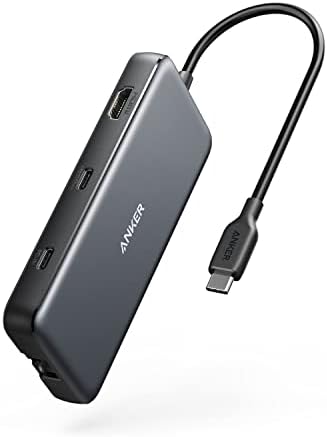
5) Anker 555 USB-C Hub (8-in-1)
What it does (technical, from the manual):
An 8-in-1 hub that adds ports like HDMI (up to 4K video output), Ethernet (gigabit), SD/microSD, USB-A, USB-C data, and USB-C PD input for pass-through charging.
How you use it (step-by-step):
- Plug the hub’s USB-C connector into your laptop/tablet USB-C port.
- If you need charging, connect your USB-C PD charger into the hub’s PD-IN port.
- Connect your monitor via HDMI, wired internet via Ethernet, and accessories via USB/SD as needed.
Real-life benefits
- One plug turns your “laptop on a desk” into a real workstation.
- Wired Ethernet is a quiet upgrade if your video calls stutter on Wi-Fi.
Pros
- Strong port mix for home office basics (display + internet + peripherals).
- Helps keep the desk cleaner if you route everything to one hub.
Cons
- Compatibility matters: some laptops have USB-C ports that don’t support video output the way you expect. (This is the #1 “hub disappointment,” and it’s not always the hub’s fault.)
- If you’re trying to run high-refresh gaming displays, a simple hub may not match your ideal spec.
Who it’s ideal for
- Laptop users who plug/unplug daily
- Anyone who wants one cable to connect keyboard/mouse/monitor
Kids/teens note
- Fine for teens; keep small SD cards organized (easy to lose).
Check price on Amazon
- The Anker Advantage: Join the 65 million+ powered by our leading technology.
6) Logitech MX Master 3S (Productivity Mouse)
What it does (technical, from Logitech docs):
A productivity-focused mouse designed for multi-device use with customizable buttons and software configuration. Logitech’s setup materials focus on pairing, installing software, and customizing the mouse for workflows.
How you use it (step-by-step):
- Charge the mouse and power it on.
- Pair via Bluetooth or receiver (depending on your model/config).
- Install Logitech’s software to customize button actions and app-specific shortcuts.
Real-life benefits
- Faster navigation through spreadsheets, timelines, and long documents.
- Custom buttons can save small chunks of time constantly (copy/paste, back/forward, mission control, etc.).
Pros
- One of the easiest “daily-use” upgrades because your hand touches it all day.
- Great for people who bounce between tasks and apps.
Cons
- Ergonomics are personal—what feels perfect to one person feels “too big” to another.
- If you’re left-handed, options can be more limited in this style category (worth checking before you buy).
Who it’s ideal for
- Office work, editing, coding, study
- Anyone who wants more control than a basic mouse
Kids/teens note
- Fine for teens; for younger kids, a simpler mouse is usually a better fit.
Check price on Amazon

- Wireless Connectivity: The mouse connects wirelessly for convenient use.
- Long Battery Life: The mouse has an average battery life of 18 months.
- Ambidextrous Design: The mouse has a design that works equally well for both left and right-handed users.
7) D-Line Cable Tidy Box (Power Strip & Cable Management)
What it does (technical, from the manual):
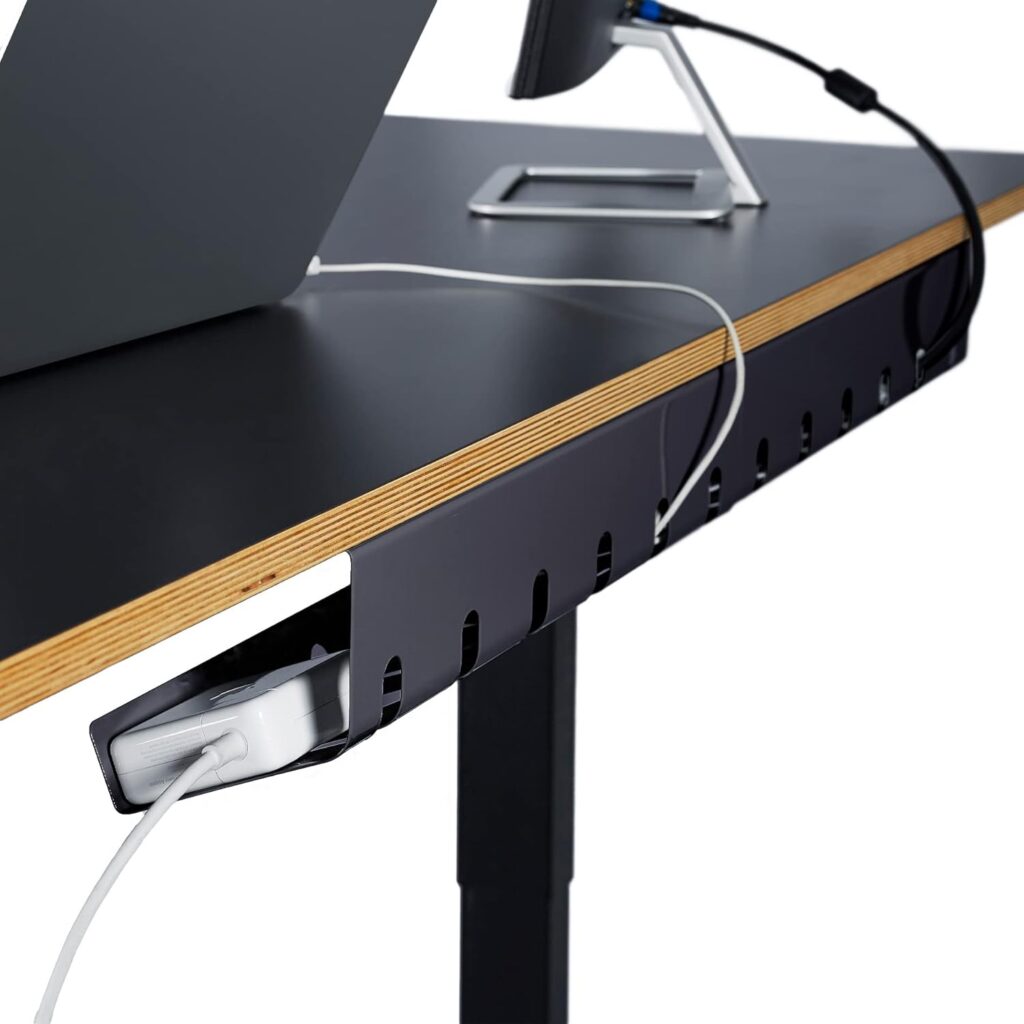
A cable management box designed to hide and contain an extension socket/power strip and cable clutter. The manual describes rear cable entry/exit routing slots, an effective click-lock lid, and electrically safe ABS material. It also lists dimensions (large: 415mm x 165mm x 135mm) and guidance on what size power strips fit.
How you use it (step-by-step):
- Place your power strip inside the box.
- Route cables through the rear entry/exit slots (left, right, or vertical).
- Close the lid so the box contains the “cable spaghetti,” keeping the floor area cleaner.
Real-life benefits
- Makes your setup look instantly more “intentional.”
- Reduces snag risks (feet, vacuum, rolling chair) and makes cleaning easier.
Pros
- Big visual payoff with minimal effort.
- Useful safety/household benefit: makes socket blocks less accessible (good if you have pets/kids around).
Cons
- You still need smart cable routing; stuffing everything inside can trap a mess instead of fixing it.
- Measure your power strip length first (the manual includes size guidance).
Who it’s ideal for
- Anyone embarrassed by the “cable octopus” under their desk
- People with robot vacuums or pets that love cords
Kids/teens note
- Great for family spaces—still, teach kids not to yank cords.
Check price on Amazon

- FOR USE WITH POWER STRIPS UP TO 10.5in Length: use D-Line Cable Management Boxes to contain power strips and cable clutt…
- PROTECT CABLES: D-Line Cord Organizer Boxes are Made in the UK from high quality electrically safe ABS plastic, so you c…
- STYLISH DESIGN: Curved edges & pin holes blend with surroundings. 3x rear cable entry/exit slots allow for a neat appear…
8) VIVO Clamp-On Desk Drawer (Under-Desk Storage)
What it does (technical, from product page + manual):
A clamp-on sliding drawer that mounts to desktops up to 2 inches thick and supports up to 11 lbs (5 kg). The manual includes safety language (don’t exceed capacity) and a choking hazard warning for small parts.
How you use it (step-by-step, per manual):
- Slide the rail set over the drawer side rails.
- Attach clamps to the rails using the holes that match desk thickness.
- Place the drawer on the desktop edge, add clamp pads, and tighten hand bolts to secure.
Real-life benefits
- Clears your desktop without needing a whole filing cabinet.
- Perfect for “small but annoying” items: flash drives, adapters, notepads, medication, keys.
Pros
- No drilling, reversible install.
- Quiet sliding mechanism is specifically mentioned as a benefit on the product listing.
Cons
- Drawer height can interfere with leg space depending on where you clamp it (a real issue noted in customer feedback).
- If your desk has a thick beveled edge, clamping may be tricky—measure before buying.
Who it’s ideal for
- Minimalist desks with zero drawers
- People who want a “hidden home” for clutter
Kids/teens note
- Manual warns about small parts/choking hazard—keep pieces away from kids under 3 and do installation with adult supervision.
Check price on Amazon

- Save Desk Space: This 26.8” (32.5” including clamps) x 11” under-desk keyboard tray holds your keyboard and mouse below …
- Height Adjustable for Ergonomic Typing: Easily slide the tray in and out, and enjoy ergonomic typing angles that relieve…
- Sturdy C-Clamps: Attach the keyboard tray/pencil drawer to your workstation without causing any damage to your desk (3.3…
Buying Guide: how to choose desk accessories that don’t become clutter
The biggest mistake is buying accessories that look cool but don’t solve a real friction point. Use this checklist:
1) Start with your biggest daily annoyance
- Neck/eye strain? Prioritize monitor height + lighting (riser/arm + light bar).
- Messy desk? Prioritize hidden storage + cable control (clamp-on drawer + cable tidy).
- Laptop life? Prioritize connectivity (USB-C hub) and a cleaner plug-in routine.
2) Measure before you buy (seriously)
- Desk thickness matters for clamp accessories (monitor arms, drawers).
- Monitor size/weight matters for arms.
- Power strip length matters for cable boxes.
3) Cheap vs premium: where it matters
- Worth paying more: lighting that avoids glare, a stable monitor arm, a mouse you’ll use 8 hours/day.
- Okay to go budget: cable management boxes, basic risers, simple storage—if the materials are safe and the fit is right.
4) Common beginner mistakes (and fixes)
- Buying a hub assuming “USB-C = video” (not always). Check your laptop’s USB-C capabilities first.
- Overstuffing cable boxes (creates heat/maintenance headaches). Keep airflow and tidy routing.
- Mounting a drawer/arm exactly where your knees need to go. Dry-fit the position before tightening.
Quick comparison table
| Pick | Category | Best for | Typical “pain it fixes” | Watch out for |
|---|---|---|---|---|
| ScreenBar Halo | Lighting | Night work + eye comfort | Harsh room lighting, glare | Needs proper USB power (device.report) |
| HUANUO Monitor Arm | Ergonomics | Desk space + positioning | Monitor too low / desk crowded | Setup + desk depth (Manuals+) |
| Fellowes Monitor Riser | Ergonomics | Simple height boost | Neck strain from low monitor | Uses desk depth (dgduupz79pcvd.cloudfront.net) |
| Fellowes Footrest | Comfort | Long sitting sessions | Dangling feet / leg fatigue | Rocking preference (cdn3.evostore.io) |
| Anker 555 Hub | Connectivity | Laptop workstation | Not enough ports | Laptop compatibility |
| MX Master 3S | Productivity | Faster navigation | Slow scrolling / repetitive actions | Ergonomic fit varies (Logitech Hub) |
| D-Line Cable Box | Cable mgmt | Cleaner under-desk | Power strip mess | Measure strip length |
| VIVO Clamp Drawer | Storage | Hidden desk essentials | Small clutter everywhere | Knee clearance + small parts |
FAQ
Do desk accessories actually improve productivity?
They can—mainly by reducing friction: less cable chaos, better lighting, and a more comfortable posture means fewer “micro-annoyances” that break focus.
Is a monitor arm better than a monitor riser?
A monitor arm usually saves more space and gives more flexibility; a riser is simpler and quicker. If you reposition your monitor often, the arm is worth it.
Will a USB-C hub work with any laptop?
Not always. The hub can be fine, but your laptop’s USB-C port may not support the features you want (especially external display output).
Are monitor light bars safe?
Yes when used correctly. Follow the guide: proper USB power, safe cable routing, indoor use, and don’t hang objects on it.
What’s the fastest “clean desk” upgrade?
A cable tidy box + a clamp-on drawer. One hides the cable mess, the other removes desktop clutter.
I share a desk—what should I choose first?
Go for adjustable items that adapt quickly: a monitor riser, footrest, and a hub (easy plug/unplug workflow).
Conclusion
If you want the biggest real-life improvement with the least regret, start with this simple order:
- Fix screen height (monitor riser or monitor arm)
- Improve lighting (light bar if you work at night)
- Kill clutter (clamp-on drawer + cable management)
- Upgrade what you touch all day (mouse)
If you’re choosing between two accessories that do the same job (like a riser vs. an arm), pick the one that matches your behavior: if you never move your monitor, a riser is enough; if you’re constantly repositioning, go arm and don’t look back.
Check price on Amazon for the one that fits your measurements and routine.